


How to Give Claude Governed Access to Enterprise Tools
Table of Contents
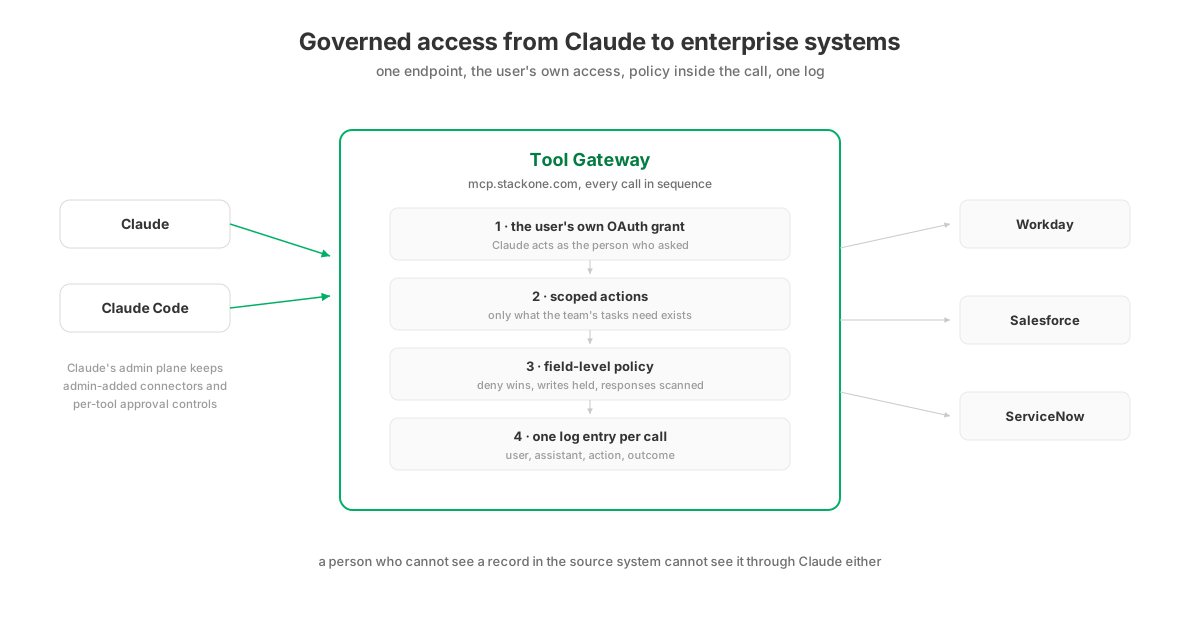
This guide sets up governed access from Claude to business systems: Claude acting under rules the organisation defines, rather than under whatever each connector happens to allow. In the end state, someone in HR asks Claude for a new joiner’s start date and it reads the record from Workday as that person, with their access, while the same request against the compensation field is refused by policy before it reaches the system. Claude Code carries the identical setup through one pinned server, and every call, from either surface, is recorded in one log naming the user, the action and the outcome.
Which gateway to run behind Claude is a separate question, compared across vendors in the Claude comparison and the Claude Code comparison. This post is the runbook: the steps use StackOne, and steps 2 to 4 apply to any remote MCP server that meets Claude’s connection requirements.
What does governed access to Claude mean?
Five properties can be checked one by one. Claude acts as the person who asked, sees only the actions a task needs, and writes within field-level rules. It leaves a per-call record naming both the user and assistant, and access can be revoked centrally. Below the connector boundary, Claude’s own admin plane supplies none of these five properties by design. It governs the Claude side, while whatever is behind each connector URL governs itself.
This split is worth stating precisely because Claude’s native controls stop at the connector boundary. Team and Enterprise admins add org-wide connectors in Organization settings and can set every tool to Always allow, Needs approval, or Blocked. Per Anthropic’s documentation, restricting actions in Claude never grants more access than the source system permits. However, Claude Enterprise’s audit logs carry no connector or MCP events, so the Claude side cannot show which records Claude touched. Anthropic reviews its connector directory against listing criteria while stating plainly that it does not security-audit or manage any MCP server. The five properties must come from the connected layer, which the following steps set up.
Prerequisites
-
A Claude Team or Enterprise plan with an admin available for one task (Pro and Max work too, self-serve; Free allows a single custom connector)
-
A StackOne project: the free plan covers the full catalogue of 590+ connectors and 36,000+ actions
-
Admin access to at least one business system to connect, or a sandbox of it
-
For step 4, Claude Code installed; for central pinning, whatever mechanism deploys managed settings to your developers’ machines
Step 1: prepare the governed endpoint
In the StackOne dashboard, create a project for the team using Claude. Next, create a connector profile for each system to store its configuration and auth settings. Enable only the actions required for the team’s tasks. A Workday connector exposes far more than an HR assistant should carry. Therefore, scoping the profile is the most effective control in the entire setup. If an action is not enabled, it does not exist for any agent, regardless of Claude’s settings.
If a profile’s configuration is sensitive, payroll being the usual example, restrict it so only named users and groups can link accounts through it. People link their own accounts now or at first use in step 3; either works.
You can confirm the endpoint is live before touching Claude: the MCP URL is https://mcp.stackone.com/mcp, the same URL for every organisation, with the OAuth flow deciding what each connection can reach.
Step 2: add the connector in claude.ai
One admin task, done once. In Organization settings, go to Connectors, then Add, then Custom, then Web. Name it, paste https://mcp.stackone.com/mcp, and leave the OAuth credential fields in Advanced settings empty; Claude registers itself with the server. On Pro and Max plans the same option is under Settings, Connectors, Add custom connector.
The connector now appears for the organisation, and this is the moment to set Claude-side action controls: each tool can be set to Always allow, Needs approval or Blocked. Because the gateway exposes a curated action list rather than hundreds of raw API wrappers, the review covers a manageable set of clearly named operations instead of ambiguous endpoints such as update_object_v2.
Step 3: each member connects as themselves
Every member who enables the connector reaches Claude’s authenticate step, which redirects to the gateway’s OAuth flow. Claude’s requirements for any remote server are fixed: OAuth with PKCE, no pasted bearer tokens. The member signs in through your SSO, picks the project, and chooses which of their linked accounts and which actions this client may use, then authorises. Accounts a colleague shared with them carry a Shared label in the picker, so a team can work through one analytics login without anyone handling its credential.
Leave “Load tools when needed” enabled. This controls Advanced Tool Search. Instead of loading the entire catalogue into context, Claude receives a fixed set of four meta-tools, led by a search and execute pair. This keeps the prompt size stable regardless of how many systems are connected.
This step establishes the key property required by security reviews. Claude does not act through a service account with broad permissions. Instead, each call runs as the requesting user. A user who cannot see a record directly in Workday cannot view it through Claude either.
Step 4: carry the same setup into Claude Code
For an individual developer, one command and one authentication:
claude mcp add --transport http --scope user stackone https://mcp.stackone.com/mcpThen run /mcp inside Claude Code, select the server, choose Authenticate, and complete the same browser consent flow as step 3. claude mcp list confirms the connection. One grant covers every account approved on the consent screen, so a single server entry is usually all a developer needs.
For an organisation, pin the server configuration instead. Claude Code’s managed-mcp.json gives IT exclusive control over active MCP servers. When the gateway URL is pinned, developers receive the governed catalogue and cannot add unmanaged servers. This configuration file replaces an unenforceable list of approved servers.
Step 5: write the policies
The previous steps determine what Claude can reach. Tool Policies define what happens inside a call. They establish rules for tool usage, field reads, field writes, and argument values, along with PII redaction. These rules can target specific users, groups, agents, accounts, or entire connector categories. Begin with deny rules for the tools and fields no workflow needs, since such rules would have contained most analysed agent failures. Run each rule in monitor mode for a week before enforcing it, and review the log of what each rule would have blocked. A matching deny rule rejects the call with a 403 response before reaching the provider, overriding any allow settings.
Enable response scanning as well. Tool responses can deliver injected instructions, which Anthropic explicitly warns against. Defender scans responses before they reach Claude, achieving 89.0% detection accuracy in our published evaluation. While detection is not total, it secures a channel that Claude’s admin plane cannot inspect.
Step 6: verify the record
Ask Claude to perform a real task, such as looking up a ticket or checking an employee’s start date. Next, inspect the request logs to locate the entry. The log records the user, assistant, action, linked account, and outcome down to the underlying provider request. This record can also be exported to the organisation’s SIEM. It provides the necessary verification for security reviews, supplying details absent from Claude’s native audit logs and meeting agent audit requirements.
If the log entry is present and names the right person, all five properties are in place. The total cost was one admin add, one consent flow per member, one command per developer, and a policy set monitored before it was enforced.
Gotchas
-
Free plan means one connector, and one gateway connector covers the full catalogue. A second custom connector requires a Pro plan or above.
-
No pasted tokens. A server that only offers API-key auth cannot be a claude.ai connector; the OAuth flow is mandatory, and the legacy SSE transport is being deprecated in favour of streamable HTTP.
-
Changing what Claude may reach means re-authenticating. Account and action grants are set on the consent screen, so a member re-runs the flow (or
/mcpin Claude Code) to widen or narrow them. Revocation is central, under Connected Apps in the dashboard. -
Approval fatigue sets in quickly. Requiring approval for every action leads users to approve prompts automatically within days, which defeats the control. Reserve approvals for write actions flagged by policy, while allowing governed read actions to run automatically.
-
Do not skip the monitor week. An enforced rule written against your assumptions will block a workflow you did not know existed, and the first report will come from the team whose workflow stopped.
Going further
The same endpoint serves subagents, which deserve narrower scopes than their parent, and the per-system deep dives show what governed access looks like against a specific vendor’s systems: Okta through Claude is the worked example with the request-by-request comparison. For choosing between gateways, the twelve-vendor comparison discloses its evaluation criteria, with StackOne included in the comparison.
Claude capabilities cited from Anthropic’s public documentation, and StackOne capabilities from docs.stackone.com, verified on 12 October 2026.