


 Alex Cox · · 5 min read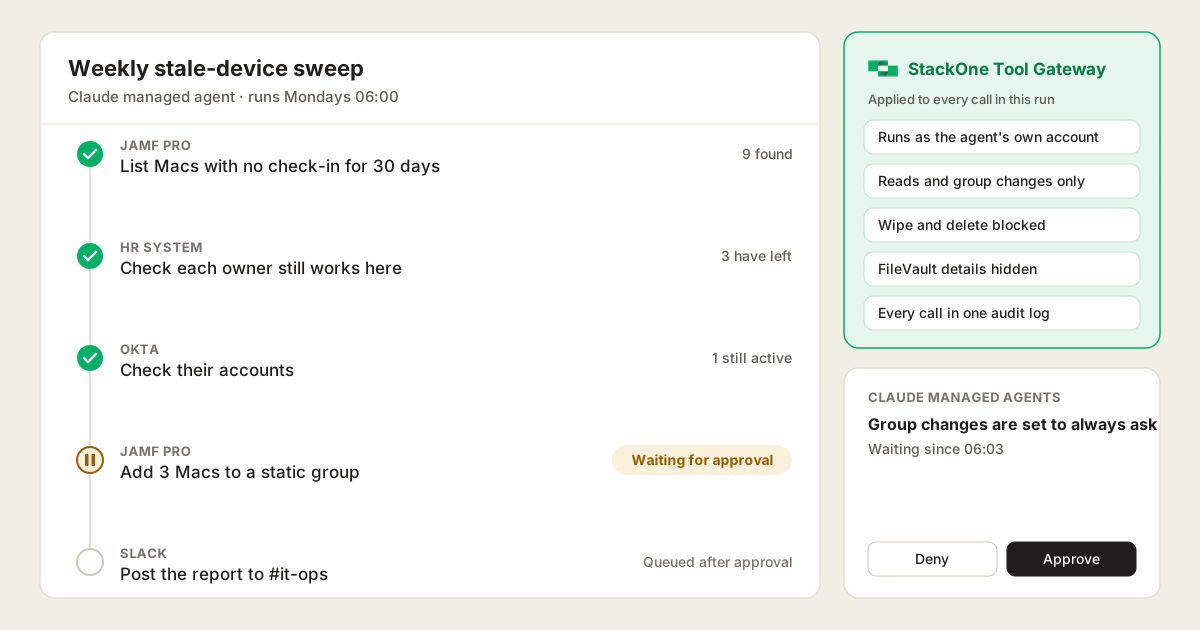
Connect Jamf to Claude Managed Agents: Unattended Device Management and IT Workflows
Table of Contents
Claude Managed Agents connect to Jamf through a remote MCP server, which turns the agent’s tool calls into Jamf API calls and is added to the agent by URL. Jamf’s own MCP servers run on an admin’s computer, so an agent can only use them if you host them yourself. For agents that run unattended, work across Jamf and other systems and need limits on what they can change, connect them through a Tool Gateway such as StackOne.
This guide is for IT teams planning agents that work in Jamf Pro without a person at the keyboard. To use Claude as an assistant in Cowork or Claude Code instead, see connecting Jamf to Claude.
In this post:
- What a managed agent does in Jamf: the jobs that suit an agent
- How to connect Jamf to Claude Managed Agents: the options
- Controlling what the agent can change in Jamf: approvals, privileges and field rules
- Jamf options for managed agents compared: one table
- How it works with StackOne: setup for a managed agent
What a managed agent does in Jamf
Claude Managed Agents runs Claude as a hosted agent that starts on a schedule or a trigger. That suits Jamf jobs that repeat every week but still need judgement:
- A weekly stale-device sweep. Find Macs that haven’t checked in for 30 days, check whether their owners still work here and still have an active account, and add the ones that need recovering to a static group.
- A leaver device check. After HR marks someone as leaving, list their Macs and mobile devices, check FileVault and the last check-in, and flag anything that still needs collecting.
- Compliance follow-up. Take the Macs in a failing compliance smart group, find their owners and managers, and draft the follow-up for each team.
In each case the agent reads widely and reports, and a person approves any change. Where the response never varies, Jamf’s smart groups, policies and Routines are still the better tool.
How to connect Jamf to Claude Managed Agents
A managed agent can only use MCP servers it can reach over the internet. Each one is declared on the agent by URL, with its credential kept in a Managed Agents vault.
Jamf’s open-source MCP servers
Jamf has two open-source MCP servers that reach a live tenant: the MCP Hub, a beta with 50 tools, and the server built into Jamf CLI. Both run on a local machine, so a managed agent can’t reach them directly.
You’d have to host one yourself behind a public URL, and then own its uptime, its patching and the Jamf API secret it holds. Each covers Jamf alone, so the HR and identity checks need more servers, each with its own credential.
Jamf’s hosted MCP server serves its developer documentation. Its tool for sending API requests only accepts Jamf’s placeholder server address today, so an agent can’t use it to reach your Jamf instance.
A Tool Gateway
A Tool Gateway gives the agent one remote URL and one credential for Jamf and every other system it needs. StackOne’s Jamf connector has 62 actions across computers, mobile devices, groups, policies, scripts and MDM commands.
- Prompt Injection Guard screens each Jamf response before the agent acts on it. Device names and extension attributes are free text, and nobody is watching the run.
- One action log records every call the agent makes across systems, ready for your SIEM.
- Tool Policies on the agent’s own account set its limits (setup below).
Controlling what the agent can change in Jamf
A managed agent can wait for a person before any tool runs, but the setting is per tool. How much control you get depends on how Jamf’s actions are split into tools.
- Jamf CLI puts every command behind one tool. A sweep that should run its lookups unattended either pauses on every call, or runs wipes and unmanage commands without asking.
- Jamf MCP Hub has no confirmation step and no lock or wipe tools, so the riskiest actions are missing rather than gated.
- Jamf’s privileges are the same for every caller. Whatever the API client can do, the agent can do, so the limit is only as narrow as the client you create.
A Tool Gateway adds three things:
- One tool per action. Set the agents project to load every action up front, and the agent’s lookups can run on their own while every group change or MDM command waits for a person.
- Rules per action and field. StackOne Tool Policies can block wipe and delete actions for the agent’s account, hide FileVault details, and mask any script field that holds a password or token. Jamf sets a separate privilege for each MDM command type, so the agent’s API client can leave out wipe altogether.
- A separate API client for the agent. Link Jamf in the agent’s own StackOne project with a client that only has the privileges the job needs, such as reading computers and creating static groups.
Jamf options for managed agents compared
| MCP Hub (beta) | Jamf CLI | StackOne | |
|---|---|---|---|
| Works with a managed agent | Only if you host it | Only if you host it | Yes |
| Approval per action | Per tool, no lock or wipe | One tool for every command | Each action is its own tool |
| Block wipe and delete per account | Not available | No | Yes |
| Hide FileVault details and secrets | Not documented | Shows admin passwords | Yes |
| Injection screening | Not documented | Not documented | Yes |
| Systems covered | Jamf Pro, Protect, Security Cloud | Jamf Pro, Protect, School | Jamf plus HR, identity, CRM and more |
| Audit | Jamf logs, by API client | Jamf logs, by API client | One log across every system |
How it works with StackOne
The StackOne admin, the Jamf admin and the Anthropic workspace admin each do part of the setup:
-
Give agents their own StackOne project, separate from the Jamf connection people use in Cowork and Claude Code, and set it to load every action up front.
-
Link Jamf in that project with its own Jamf Pro API client, limited to the privileges the job needs. Link the HR system and identity provider the same way.
-
Add an account for the agent that can only see that project. With SCIM or SSO, provision it in your identity provider as a non-human user; otherwise, run agents in a separate StackOne organisation.
-
Set policies on the agent’s account, such as read and group actions only, no wipe or delete, and hidden FileVault details. Run them in Monitor for the first few sweeps to see what they would have blocked, then enforce them.
-
Create the agent in the Claude Console. Under Managed Agents, then Agents, click Create agent, open Tools, click Add MCP server and paste
https://mcp.stackone.com/mcp.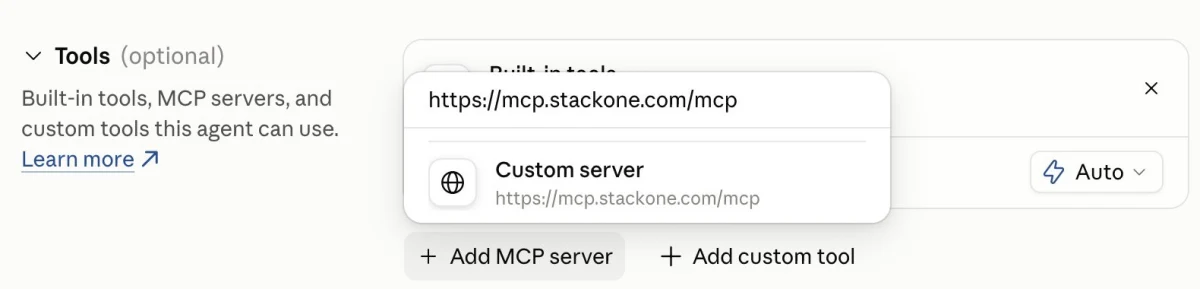
-
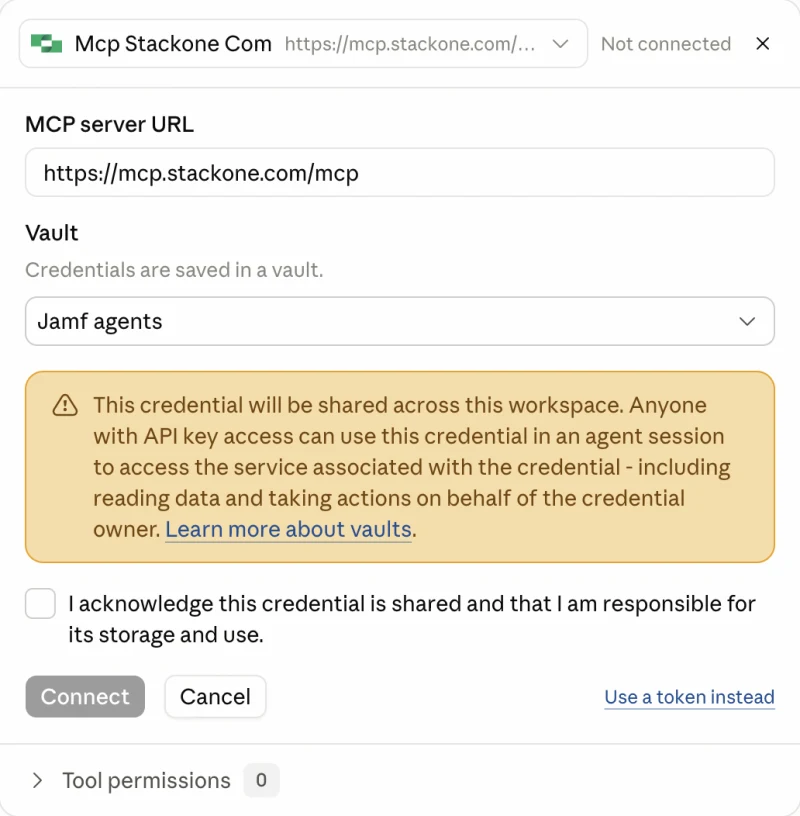
Click Connect and sign in to StackOne as the agent’s account. The Console saves the sign-in in a vault, and the token refreshes on its own, so nobody has to sign in again. The Console’s own warning is why steps 3 and 4 matter: anyone with API key access to the workspace can use that credential, so the agent’s StackOne account and its policies set what it can reach.
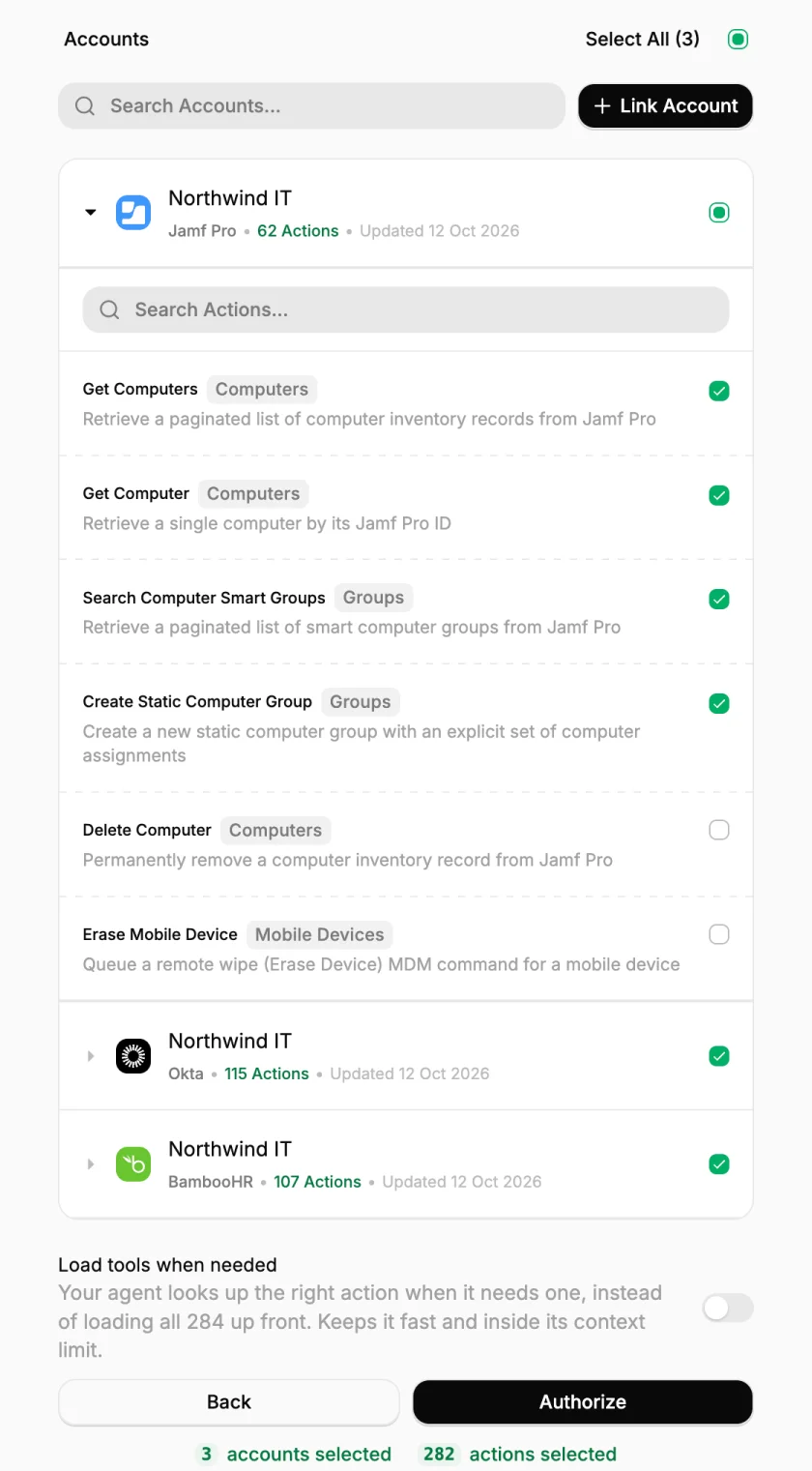
In the StackOne window, pick the Jamf actions the agent can use and leave destructive ones such as Delete Computer unticked. Turn off Load tools when needed, so each action reaches the Console as its own tool with its own permission, then click Authorize.
-
Set the StackOne tools to Always ask under Tool permissions, then set Jamf reads such as
jamf_get_computersto Always allow. Schedule the weekly sweep under Deployments. Teams that keep agents in code can declare the same server and permissions in an agent file and apply it withant apply.
From then on, each call shows in the log under the agent’s account, not the person who set it up. The weekly sweep checks Jamf, the HR system and the identity provider through one connection, posts its report, and leaves the recovery group waiting for a person to approve.
Frequently Asked Questions
Can Claude Managed Agents connect to Jamf?
Can I use Jamf's MCP Hub or Jamf CLI with Claude Managed Agents?
How do I stop a Claude managed agent from wiping devices in Jamf?
always_ask permission policy so a person approves each call. Give the agent its own Jamf API client without wipe privileges as well.