
LeadDocket MCP Server
for AI Agents
Connect your AI agent to StackOne's LeadDocket MCP server and give it 26 MCP tools out of the box. Auth, tool execution, and security all managed.
 StackOne






Coverage
26 Agent Actions
Create, read, update, and delete across LeadDocket — and extend your agent's capabilities with custom actions.

Authentication
Agent Tool Authentication
Per-user OAuth in one call. Your LeadDocket MCP server gets session-scoped tokens with zero credentials stored on your infra.
Agent Auth →
Security
Agent Protection
Every LeadDocket tool response scanned for prompt injection in milliseconds — 88.7% accuracy, all running on CPU.
Prompt Injection Defense →
Performance
Max Agent Context. Min Cost.
Free up to 96% of your agent's context window to enhance reasoning and reduce cost, on every LeadDocket call.
Tools Discovery →What is the LeadDocket MCP Server?
A LeadDocket MCP server lets AI agents read and write LeadDocket data through the Model Context Protocol — Anthropic's open standard for connecting LLMs to external tools. StackOne's LeadDocket MCP server ships with 26 pre-built actions, fully extensible via the Connector Builder — plus managed authentication, prompt injection defense, observability, and agent execution runtime. Connect it from MCP clients like Claude Desktop, Claude Code, Cursor, Goose, and VS Code, or from agent frameworks like OpenAI Agents SDK, LangChain, and Vercel AI SDK.
All LeadDocket MCP Tools
Every action from LeadDocket's API, ready for your agent. Create, read, update, and delete — scoped to exactly what you need.
Leads
- List Leads
Retrieve a paginated list of leads filtered by status ID with optional sub-status filtering and sort order
- Get Lead
Retrieve full details of a single lead by ID including contact info, notes, messages, files, and custom fields
- Update Lead
Update properties of an existing lead such as case type, summary, incident date, office, and source
Contacts
- Create Contact
Create a new contact with name, address, phone, email, and other details
- Get Contact
Retrieve a single contact by ID with full details including custom fields and tags
- Search Contacts
Search for contacts by name, email, or phone number
- Update Contact
Update an existing contact's name, address, phone, email, and other properties
Users
- List Users
Retrieve a list of all LeadDocket users with their roles and permissions
- Get User
Retrieve a single user by ID with roles and permissions
Tasks
- Create Task
Create a new task on a lead with summary, start date, assigned user, and type
- Get Task
Retrieve a single task by ID
- Update Task
Update an existing task's summary, start date, assigned user, type, or completion status
- Delete Task
Delete a task by ID
Other (13)
- Add Lead Note
Add a new note to a specified lead
- List Leads Updated Since
Retrieve all leads updated since a given date, covering both status changes and edit events
- Get Lead Basic
Retrieve basic information for a single lead without notes, messages, and other nested lists
- List Contacts Updated Since
Retrieve all contacts updated since a given date with pagination
- Get Opportunity
Retrieve full details of an opportunity by ID including contact info, status, and custom fields
- List Unprocessed Opportunities
Retrieve all opportunities that have not been processed into leads
- List Opportunities Created Since
Retrieve all opportunities created since a specific date with pagination
- List Opportunities Updated Since
Retrieve all opportunities updated since a specific date with pagination
- List Users By Role
Retrieve users assigned to a specific role by role ID
- List Statuses
Retrieve all lead statuses with their sub-statuses and configuration
- Get Status
Retrieve a single status by ID with its sub-statuses and configuration
- List Tasks By Lead
Retrieve all tasks for a specific lead
- Change Lead Status
Change the status of a lead with optional sub-status, severity level, assigned users, and notes
LeadDocket AI Agent Use Cases
Connect your AI agent to LeadDocket and help your team scale the sales operations they run by hand today.
Use StackOne to connect your AI agent to your CRM, email, and calendar tools to automate post-demo follow-up.
ViewUse StackOne to connect your AI agent to your CRM, email, and calendar tools to automate deal risk scoring and pipeline alerts.
ViewUse StackOne to connect your AI agent to your CRM, sales engagement, and messaging tools to automate outbound prospecting.
ViewSet Up Your LeadDocket MCP Server in Minutes
One endpoint. Any framework. Your agent is talking to LeadDocket in under 10 lines of code.
Agent Frameworks


 JSON
JSON{
"mcpServers": {
"stackone": {
"command": "npx",
"args": [
"-y",
"mcp-remote@latest",
"https://api.stackone.com/mcp?x-account-id=<account_id>",
"--header",
"Authorization: Basic <YOUR_BASE64_TOKEN>"
]
}
}
}Check More crm-sales MCP Servers
135+ actions
104+ actions
82+ actions
61+ actions
59+ actions
54+ actions
53+ actions
Platform Resources
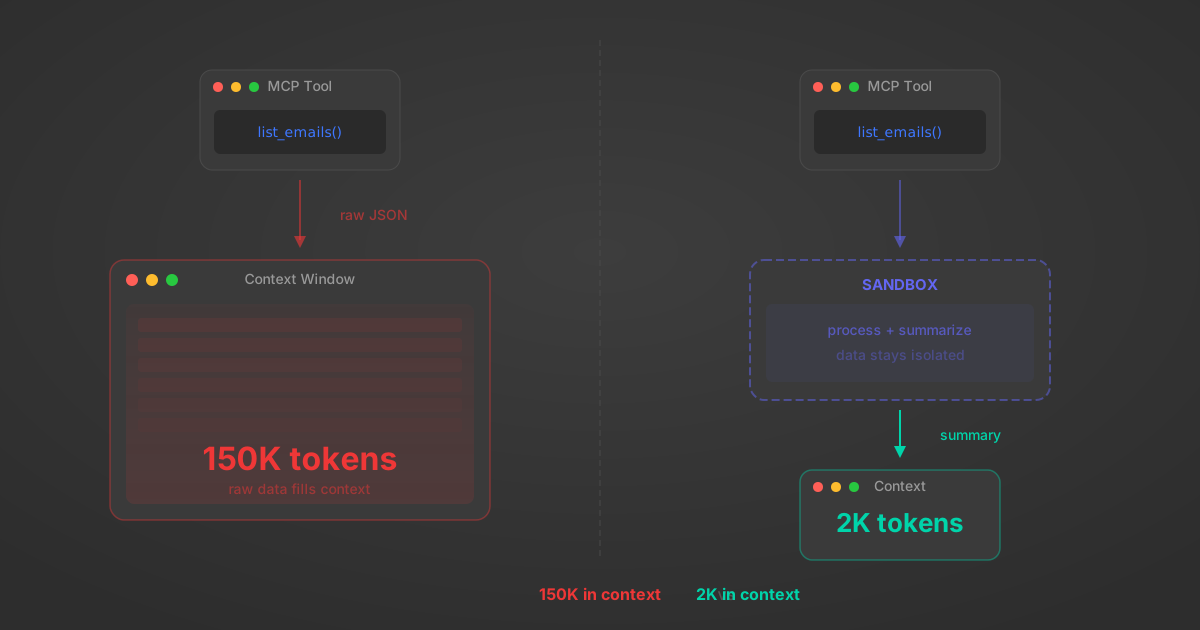
MCP Code Mode: Keeping Tool Responses Out of Agent Context
Anthropic's code_execution processes data already in context. Custom MCP code mode keeps raw tool responses in a sandbox. 14K tokens vs 500.
11 min
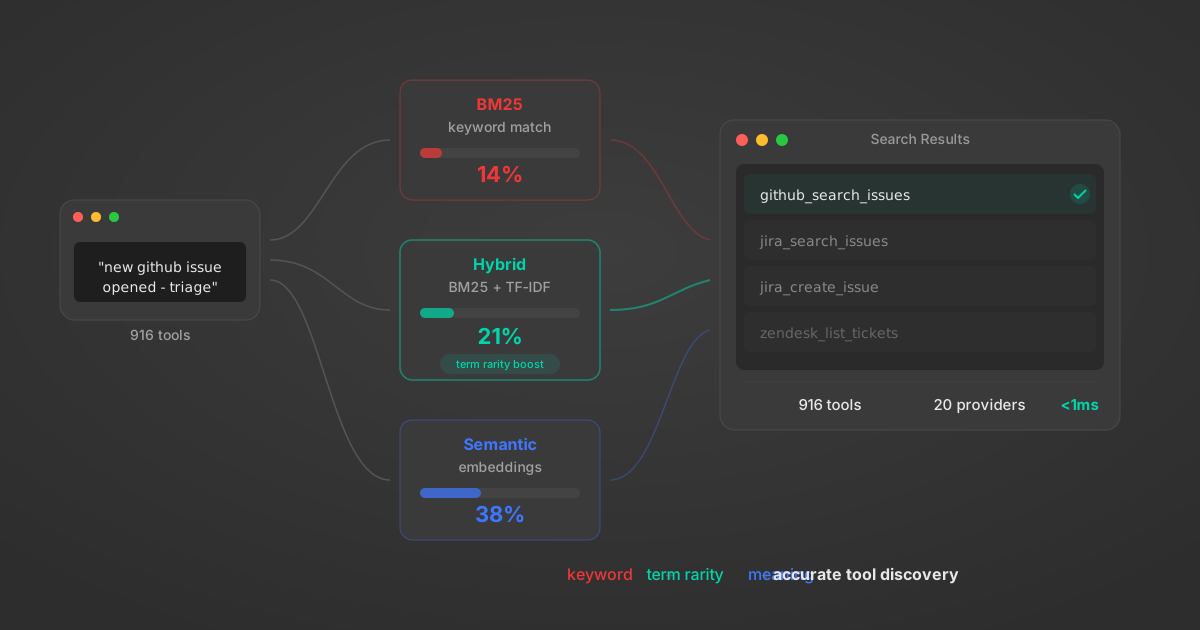
Comparing BM25, TF-IDF, and Hybrid Search for MCP Tool Discovery
Benchmarking BM25, TF-IDF, and hybrid search for MCP tool discovery across 916 tools. The 80/20 TF-IDF/BM25 hybrid hits 21% Top-1 accuracy in under 1ms.
10 min
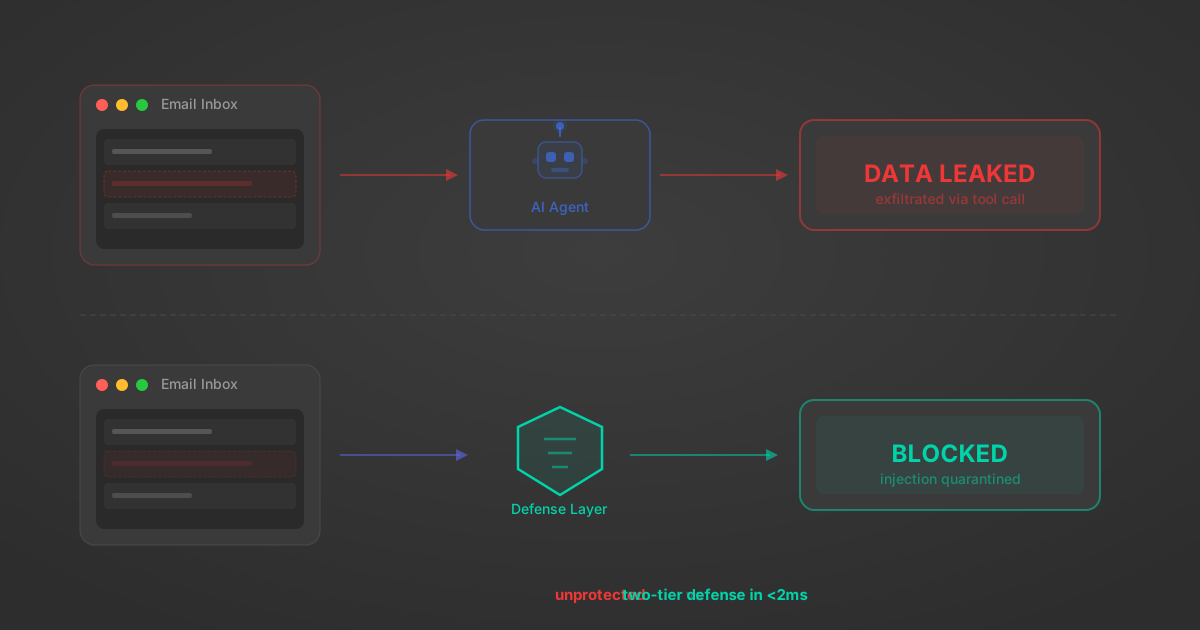
Indirect Prompt Injection Defense for MCP Tools: A Technical Guide
MCP tools that read emails, CRM records, and tickets are indirect prompt injection vectors. Here's how we built a two-tier defense that scans tool results in ~11ms.
12 min
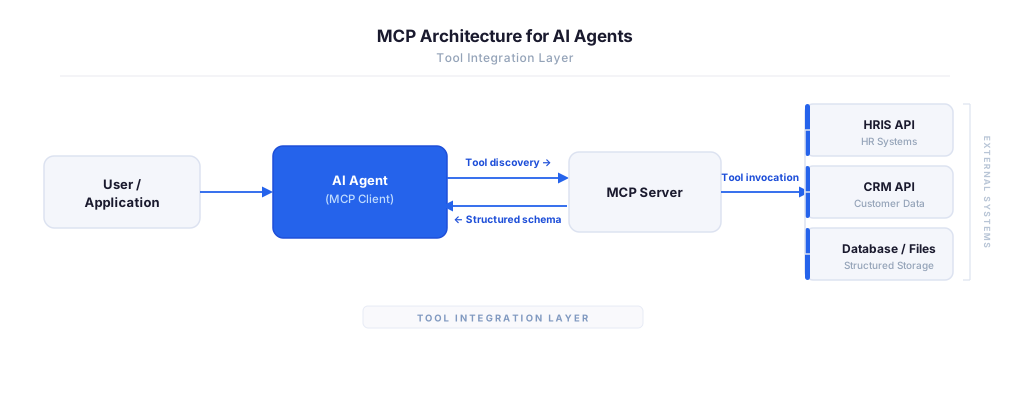
MCP vs A2A: Architecture, Security, and When to Use Each
MCP vs A2A: what each protocol standardizes, how they differ, their shared security risks including indirect prompt injection, and when to use one, both, or a hybrid architecture.
12 min
MCP vs API: What Hundreds of Connector Builds Taught Us
MCP wraps APIs, it doesn't replace them. After building hundreds of connectors that serve both, here's when each approach wins.
14 min read
LeadDocket MCP Server FAQ
Does StackOne have a LeadDocket MCP server?
LeadDocket MCP server vs direct API integration — what's the difference?
How does LeadDocket authentication work for AI agents?
origin_owner_id.Are LeadDocket MCP tools vulnerable to prompt injection?
What is the context bloat of a LeadDocket agent and how do I avoid it?
Can I limit which actions my LeadDocket agent can access?
Can I create custom agent actions for my LeadDocket MCP server?
When should I NOT use a LeadDocket MCP server?
What AI frameworks and AI clients does the StackOne LeadDocket MCP server support?
Put your AI agents to work
All the tools you need to build and scale AI agent integrations, with best-in-class connectivity, execution, and security.