


September 2026
Tool Policies: Control Agent Tools, Fields and Values
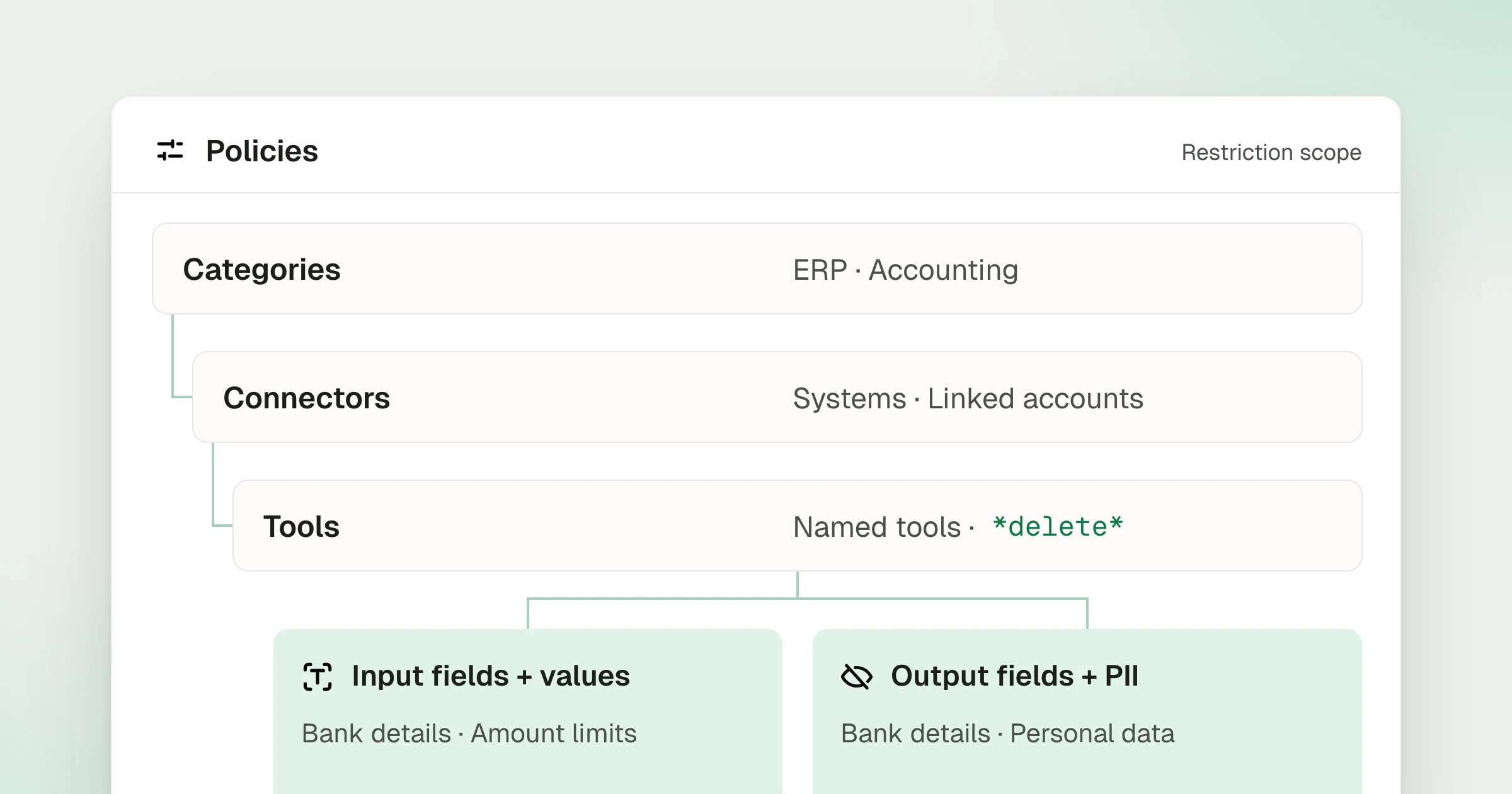
An agent may need access to an accounting system while still being prevented from changing supplier bank details or reading personal data. Tool Policies add restrictions at each level, from a connector category to the fields and values in a request or response. Admins apply those rules to agents acting on behalf of specific users and groups.
What’s new
- User and group audiences. Apply a rule to everyone in the organization, selected users, or groups such as Procurement. Add user or group exemptions inside a restriction when needed.
- Connector and category scope. Restrict a specific connector, narrow the rule to linked accounts, or cover a category such as ERP or Accounting.
- Named tools and wildcard patterns. Choose individual tools or match tool names with a case-sensitive pattern such as
*delete*to cover deletion tools within the selected scope. - Input fields and values. Protect fields such as supplier bank details, or constrain inputs to permitted values and amount ranges. An enforced field-write denial refuses the request; it does not silently drop a field and continue the write.
- Output fields and personal data. Mask protected fields before the response reaches the agent, including bank details and fields assigned to a PII group. A field-read denial masks that field rather than refusing the successful tool response.
- AI-assisted authoring. Describe the restriction in plain language, generate a policy with AI, then review and edit it in the builder before saving. Inspect the same rule as Cedar or its JSON representation. Audience assignments and enforcement mode are stored separately from the authored rule.
- Monitor and enforce modes. Monitor evaluates a rule without applying its restriction. Enforce applies the restriction to matching requests or fields. Keep a rule inactive while preparing it, then activate it when ready.
- Policy details in request logs. Inspect the policies evaluated for a request, whether each matched, its mode, and its decision. Distinguish an enforced denial from a Monitor result or a rule that did not apply.
Getting started
Create a rule under Project Settings > Policies, choose its audience and restriction scope, and review the generated rule. Use Monitor mode to inspect matches before enforcing it more broadly. Other enforced policies and existing access controls still apply while a rule is in Monitor mode.
Policies apply to calls that carry an organization member’s identity. API key calls and sessions without that identity do not receive member policies. Policies add restrictions to existing access; they cannot grant a tool outside that access or override a disabled connector-profile action. A matching deny takes precedence over an allow, so exceptions belong in the deny rule itself.
Explore the Tool Policies walkthrough for examples across tools and fields. Use Groups to maintain shared audiences, then inspect results alongside the request in Logs.