
Autodesk MCP Server
for AI Agents
Connect your AI agent to StackOne's Autodesk MCP server and give it 65 MCP tools out of the box. Auth, tool execution, and security all managed.
 StackOne






Coverage
65 Agent Actions
Create, read, update, and delete across Autodesk — and extend your agent's capabilities with custom actions.

Authentication
Agent Tool Authentication
Per-user OAuth in one call. Your Autodesk MCP server gets session-scoped tokens with zero credentials stored on your infra.
Agent Auth →
Security
Agent Protection
Every Autodesk tool response scanned for prompt injection in milliseconds — 88.7% accuracy, all running on CPU.
Prompt Injection Defense →
Performance
Max Agent Context. Min Cost.
Free up to 96% of your agent's context window to enhance reasoning and reduce cost, on every Autodesk call.
Tools Discovery →What is the Autodesk MCP Server?
A Autodesk MCP server lets AI agents read and write Autodesk data through the Model Context Protocol — Anthropic's open standard for connecting LLMs to external tools. StackOne's Autodesk MCP server ships with 65 pre-built actions, fully extensible via the Connector Builder — plus managed authentication, prompt injection defense, observability, and agent execution runtime. Connect it from MCP clients like Claude Desktop, Claude Code, Cursor, Goose, and VS Code, or from agent frameworks like OpenAI Agents SDK, LangChain, and Vercel AI SDK.
All Autodesk MCP Tools
Every action from Autodesk's API, ready for your agent. Create, read, update, and delete — scoped to exactly what you need.
Account Users
- Create Account User
Add a new user to a BIM 360 account.
- List Account Users
Query all users in a specific BIM 360 account
- Get Account User
Get details of a specific user in a BIM 360 account by user ID.
- Update Account User
Update a specific user's status or default company in a BIM 360 account.
Account Projects
- Create Account Project
Create a new project in a BIM 360 account with required and optional settings.
- List Account Projects
List projects in a hub. Hub admins/executives see all projects; other users see only assigned projects.
- Update Account Project
Update properties of a specific BIM 360 project (name, status, dates, address, value, etc.).
Account Companys
- Create Account Company
Create a new partner company in a BIM 360 account or Forma hub.
- Get Account Company
Get details of a specific partner company in a BIM 360 account or Forma hub.
- Update Account Company
Update properties of a specific partner company in a BIM 360 account or Forma hub.
Project Users
- Add Project User
Add a project admin to a specific BIM 360 project and service type. BIM 360 only — not compatible with ACC.
- List Project Users
List users in a project. Supports filtering by name, email, access level, company, role, status, products, and more.
- Update Project User
Update a user's company and industry roles for a BIM 360 project.
Buckets
- Create Bucket
Create a new OSS bucket owned by the calling application.
- List Buckets
List the buckets owned by the calling application. Supports pagination.
- Delete Bucket
Delete a bucket owned by the calling application. Irreversible.
Business Units
- Create Business Units
Create or redefine the business units of a specific BIM 360 account or Forma hub.
- List Business Units
Query all business units in a specific BIM 360 account or Forma hub.
Folders
- Create Folder
Create a new folder in a project
- Get Folder
Get details of a specific folder
- Search Folder
Search for items within a folder
- Update Folder
Rename or move a folder
Hubs
- List Hubs
List all accessible hubs for the authenticated user
- Get Hub
Get details of a specific hub by ID
Unified Groups
- List Unified Groups
List BIM 360 / ACC companies mapped to the StackOne IAM groups schema.
- Get Unified Group
Get a single BIM 360 / ACC company by id and return the unified IamGroup record.
Unified Organizations
- List Unified Organizations
List the BIM 360 / ACC account (single-tenant) as a unified IAM organization.
- Get Unified Organization
Get the BIM 360 / ACC account by id and return the unified IamOrganization record.
Unified Roles
- List Unified Roles
List the synthesized BIM 360 / ACC account-level roles (account_admin, account_user).
- Get Unified Role
Get a single synthesized BIM 360 / ACC account-level role by id (account_admin or account_user), or 404 for an unrecognized id.
Unified Users
- List Unified Users
List all users in the BIM 360 / ACC account.
- Get Unified User
Get a single BIM 360 / ACC user by id and return the unified IamUser record.
Items
- Create Item
Create the first version of a file (item) in a project folder. Requires a pre-uploaded storage object. Or use `upload_file_in_project_folder` for a single-call workflow.
- Get Item
Get details of a specific item (file) by ID
- Update Item
Update properties of an existing item (file) in a project — extension metadata and description.
Projects
- List Projects
List all projects within a specific hub
- Get Project
Get details of a specific project
Versions
- Create Version
Create a new version of an existing item (file) in a project. Requires a pre-uploaded storage object.
- Get Version
Get details of a specific version, including the storage URN needed for downloading the file.
Webhooks
- Create Webhook
Add a new webhook to receive notifications on a specified system event.
- List Webhooks
List all registered webhooks (paginated). Returns the first page if `pageState` is not provided.
- Get Webhook
Get details of a specific webhook by its hook ID (callback URL, scope, status, creator, and configuration).
- Update Webhook
Partially update a webhook (status, filter, hookAttribute, token, autoReactivateHook, hookExpiry).
- Delete Webhook
Delete a webhook subscription based on its `hook_id`. Permanent — the webhook will no longer receive event notifications.
Other (21)
- Create Storage
Create a storage location (placeholder) for a file in a project, returning a storage URN for later binary upload.
- Upload Binary To Signed S3 URL
PUT binary content directly to a signed S3 upload URL obtained from `get_signed_s3_upload_urls`. No Autodesk auth is sent — the URL is pre-signed.
- Upload File In Project Folder
Upload a file binary and create an item (with first version) inside a project folder, in one call.
- List Account Companies
List companies in a hub. Supports filtering by name, trade, ERP ID, tax ID, status, and date range.
- List Project Industry Roles
List the industry roles for a BIM 360 project (e.g., contractor, architect). BIM 360 only — not compatible with ACC.
- Get Bucket Details
Get details of a specific bucket owned by the calling application.
- List Bucket Objects
List all objects in a specific bucket (paginated). Use this to discover `objectKey` values for `get_signed_s3_download_url`.
- List Folder Contents
List the contents of a specific folder
- Get Unified Credentials
Return the authenticated identity and auth type for the current Autodesk APS connection.
- List Unified Resource Types
List unified resource types in Autodesk.
- List Unified Resource Users
List users assigned to a BIM 360 / ACC project, mapped to the StackOne IAM unified users schema.
- Get Item Tip Version
Get the latest (tip) version of an item, including the storage URN needed for downloading the file.
- List Item Versions
List all versions of a specific item
- List Top Folders
List the root (top-level) folders in a project
- Get Signed S3 Download URL
Get a signed S3 URL to download an object directly from Autodesk OSS. Works with both 3-legged and 2-legged auth depending on bucket ownership.
- Get Signed S3 Upload URLs
Get signed S3 URLs that the client can PUT binary parts to. Step 2 of the file-upload workflow. Pass the returned URLs to `upload_to_s3` action.
- Get Version Download Formats
Get available download formats for a version
- Get Version Downloads
Get download links for a version
- List Webhooks By System
List all webhooks for a specific system (paginated). Returns the first page if `pageState` is not provided.
- Delete Object
Delete an object from an app-owned OSS bucket. This operation is irreversible.
- Signed S3 Upload
Finalize a signed S3 upload session to OSS after uploading binary via `upload_to_s3` action. Step 4 of the file-upload workflow.
Set Up Your Autodesk MCP Server in Minutes
One endpoint. Any framework. Your agent is talking to Autodesk in under 10 lines of code.
Agent Frameworks


 JSON
JSON{
"mcpServers": {
"stackone": {
"command": "npx",
"args": [
"-y",
"mcp-remote@latest",
"https://api.stackone.com/mcp?x-account-id=<account_id>",
"--header",
"Authorization: Basic <YOUR_BASE64_TOKEN>"
]
}
}
}Check More Design & Visual MCP Servers
Platform Resources
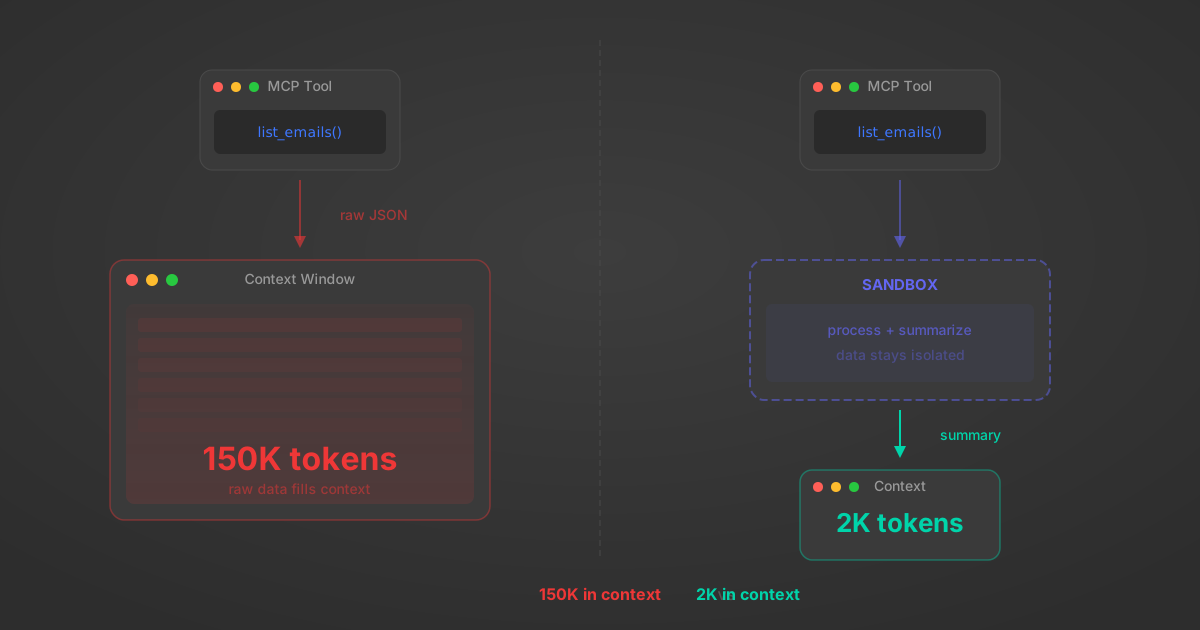
MCP Code Mode: Keeping Tool Responses Out of Agent Context
Anthropic's code_execution processes data already in context. Custom MCP code mode keeps raw tool responses in a sandbox. 14K tokens vs 500.
11 min
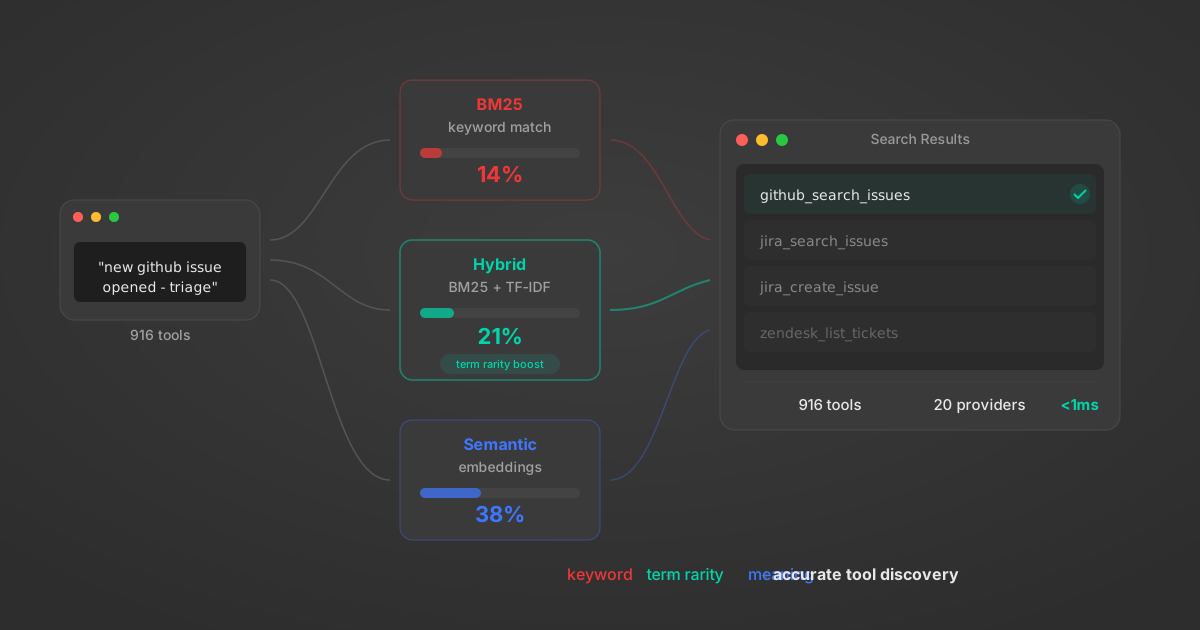
Comparing BM25, TF-IDF, and Hybrid Search for MCP Tool Discovery
Benchmarking BM25, TF-IDF, and hybrid search for MCP tool discovery across 916 tools. The 80/20 TF-IDF/BM25 hybrid hits 21% Top-1 accuracy in under 1ms.
10 min
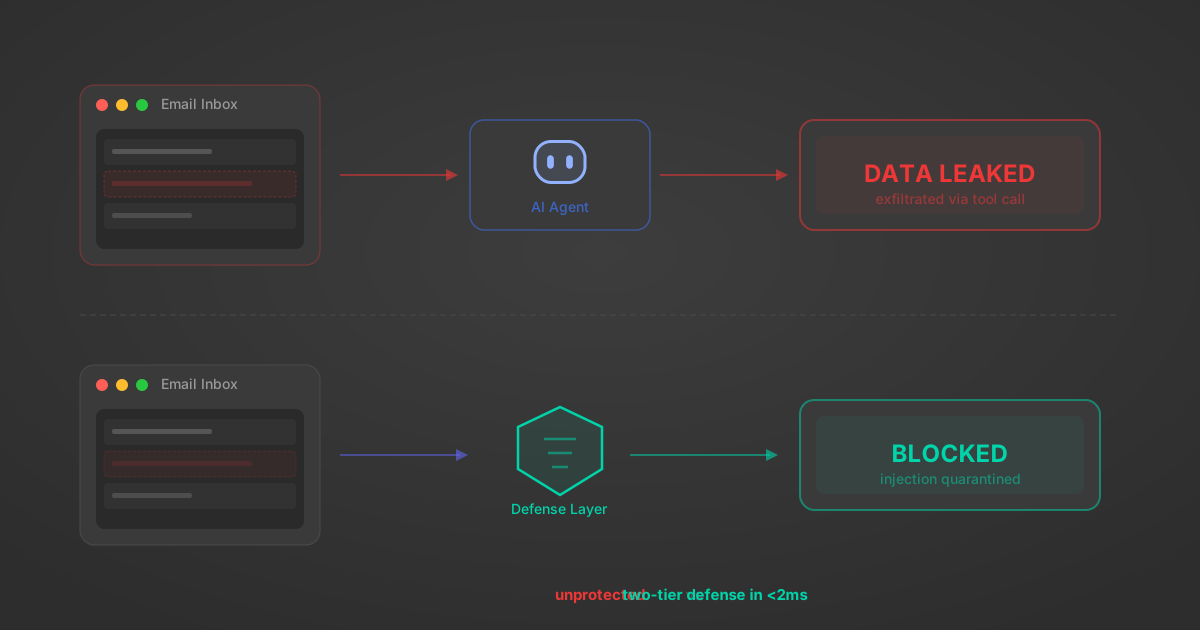
Indirect Prompt Injection Defense for MCP Tools: A Technical Guide
MCP tools that read emails, CRM records, and tickets are indirect prompt injection vectors. Here's how we built a two-tier defense that scans tool results in ~11ms.
12 min
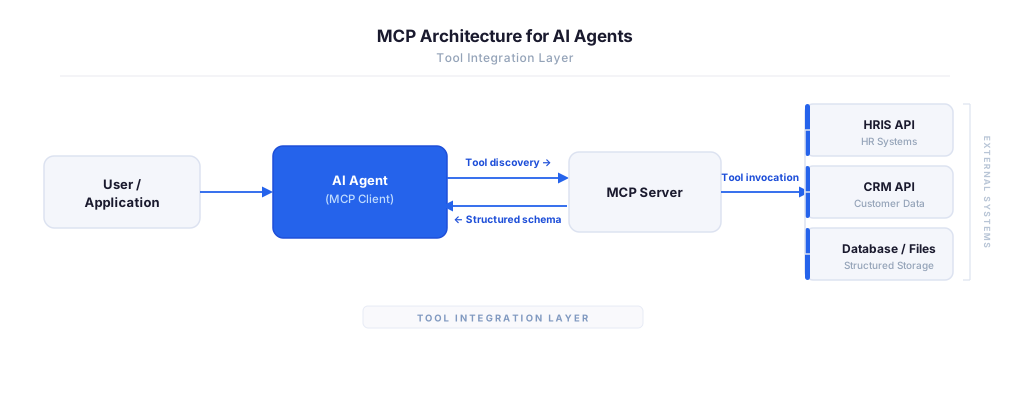
MCP vs A2A: Architecture, Security, and When to Use Each
MCP vs A2A: what each protocol standardizes, how they differ, their shared security risks including indirect prompt injection, and when to use one, both, or a hybrid architecture.
12 min
MCP vs API: What Hundreds of Connector Builds Taught Us
MCP wraps APIs, it doesn't replace them. After building hundreds of connectors that serve both, here's when each approach wins.
14 min read
Autodesk MCP Server FAQ
Does StackOne have a Autodesk MCP server?
Autodesk MCP server vs direct API integration — what's the difference?
How does Autodesk authentication work for AI agents?
origin_owner_id.Are Autodesk MCP tools vulnerable to prompt injection?
What is the context bloat of a Autodesk agent and how do I avoid it?
Can I limit which actions my Autodesk agent can access?
Can I create custom agent actions for my Autodesk MCP server?
When should I NOT use a Autodesk MCP server?
What AI frameworks and AI clients does the StackOne Autodesk MCP server support?
Put your AI agents to work
All the tools you need to build and scale AI agent integrations, with best-in-class connectivity, execution, and security.